3 min read
 Qazi Murtaza
Introduction
Recently, we had an opportunity to work extensively on SAP API Management, which provides scalable and secure access to digital assets through application programming interfaces (APIs) and enables developer communities to consume these. To our surprise, we found that it actually uses Edge API gateway, the OEM version of Google Apigee, which according to Gartner is the market leader, as the runtime component. Although there is no comparison between the solutions, they are both complex products.
Since we work within the SAP ecosystem, its API Management was the only possible solution to the client’s request for API management. This blog will walk you through the implementation process and how it proved to be an effective solution.
The Nightmare of Multiple APIs
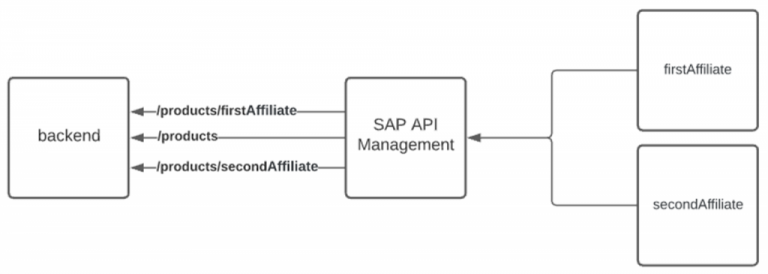
A diagram depicting a test case.
Let’s assume we have more than one affiliate (a service or a user we are exposing our API(s) to) and want to retrieve information from our product using APIs. We will use SAP API Management for API Full-Lifecycle as part of our solution. Every affiliate would have different backend endpoints they would want to target, but they will not be completely dissimilar, such as the domain of the same entity type, i.e. the “Product”. In our case, it is API Base Path.
Creating a separate API for each affiliate would mean duplicating the same logic repeatedly and will be a nightmare to maintain and upgrade. Imagine having more than just two affiliates, and then taking a new one on board. Maintaining separate APIs for each affiliate will not be the best practice because if we had to update the logic in one proxy, we would have to update all the APIs.
The current limitation of SAP API Management is that it does not support defining multiple target endpoints in the UI. However, since SAP’s solution is actually Apigee, which supports this multi-target endpoint feature, let’s explore how we can deploy it using syntax.
Keeping it Simple
First, let’s create an API for single affiliates.
Log onto the SAP API Portal and create a new API.
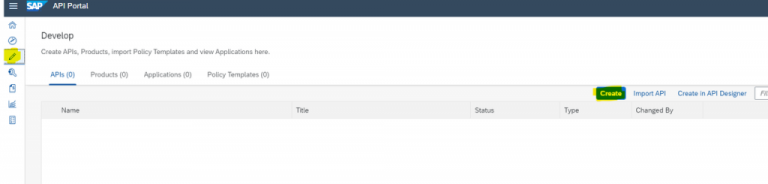
A screenshot of SAP API Portal’s dashboard.
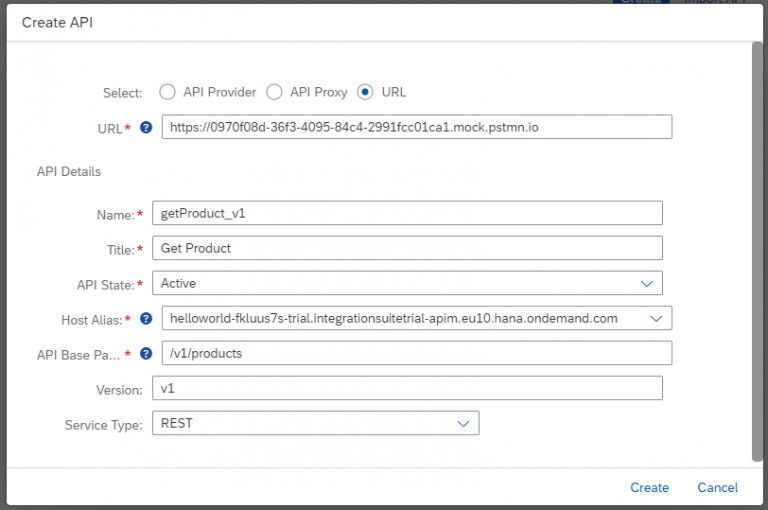
Note: You will need a mock or backend server to test appropriately with default sample responses. We have used Postman to create mock APIs with different paths for this blog, as listed in the above diagram.
Once created, save and deploy the API.

Create a “Product”, which will hold the API in the second tab, and click “Create”.
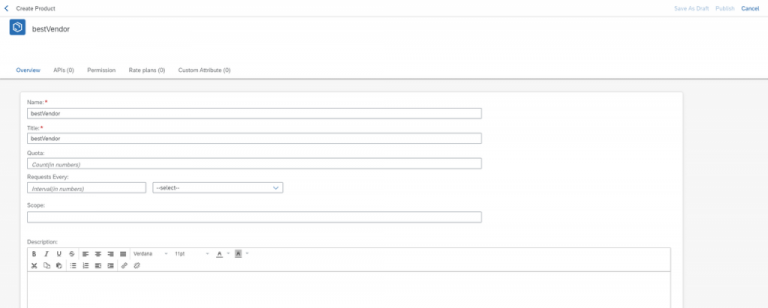
Now, let’s add the APIs to our newly created “Product”. In the next tab `API (0)’, click “Add” on the left.
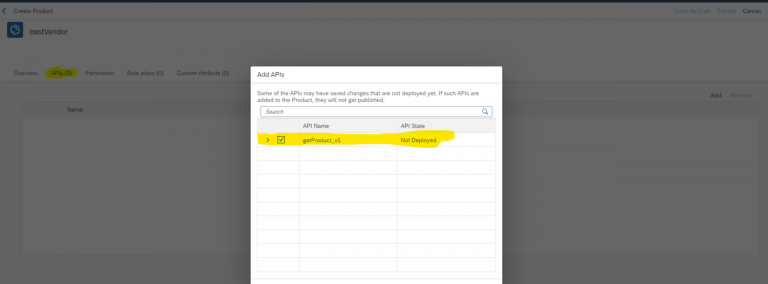
Select the API we just created and click OK. Finally, Publish the “Product”.
Now let’s create entities for our “Application”. These entities will also hold credentials for “Affiliates”. First, let’s visit the “API Business Hub Enterprise”.

Once we land on the homepage of API Business Hub Enterprise, we will see our newly created “Product”.
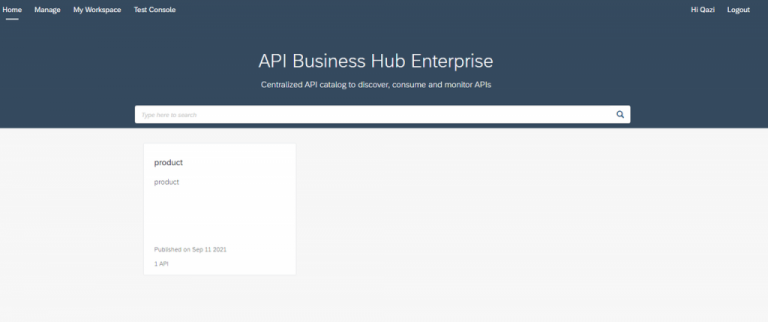
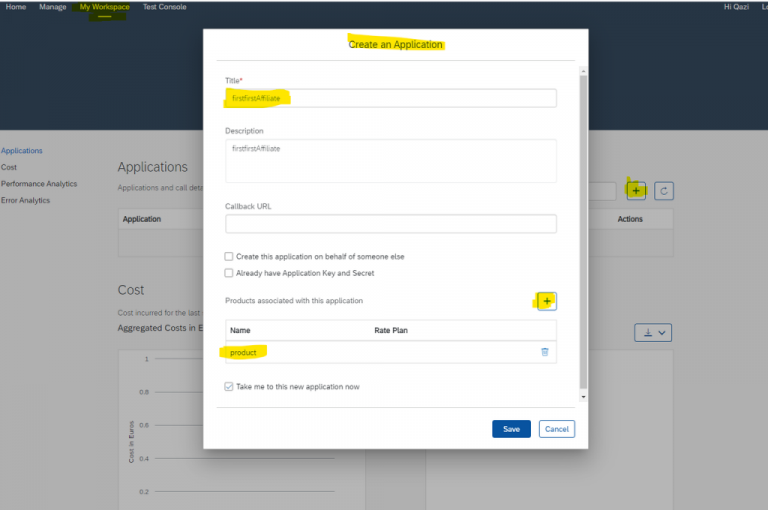
Next, click on “My Workspace” on the top of the page and create a new “Application” — let’s call it ‘firstAffiliate’.
Select the newly created “Product” and click Save.
If successful, you will be guided to your new application.
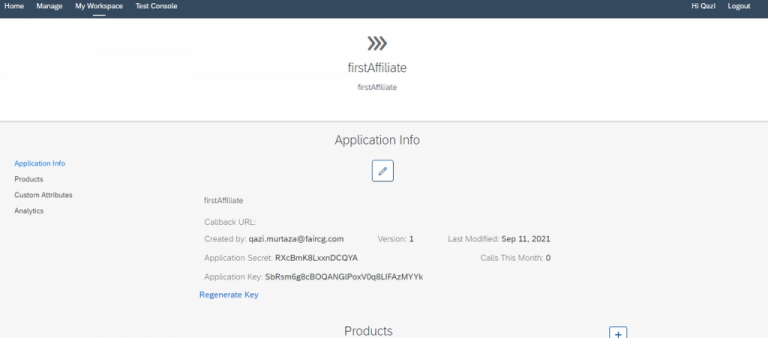
Now that we are here, create another application, call it ‘secondAffiliate’, and assign it the same “Product” now.
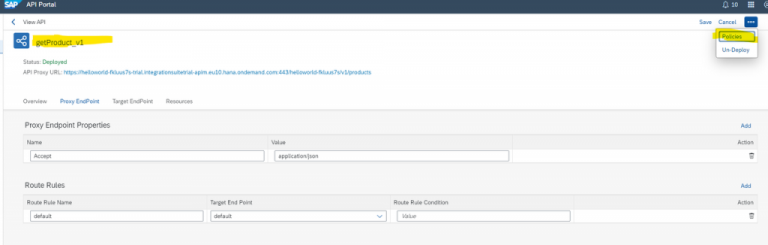
Now, secure your API. This step will also help us identify and redirect the request. Go back to your API, click Edit and go to policies. As highlighted in the second image below, drag and drop “VerifyAPIKey Policy” in the ‘PreFlow’ section of the ‘Flows’ dropdown menu on the left
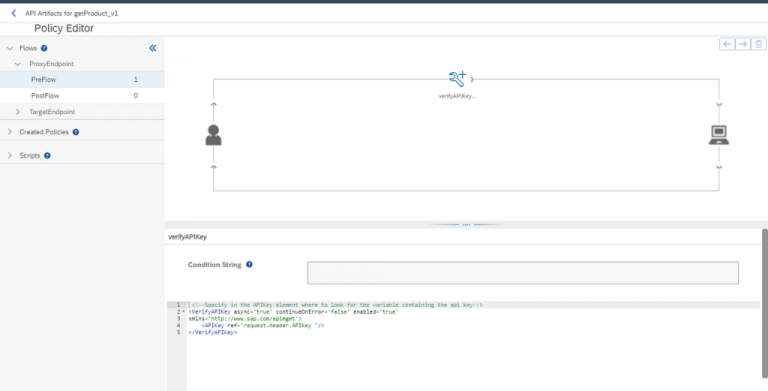
Next, update the API Key reference value in the coding window. Update, save and deploy the changes to API, using Postman.
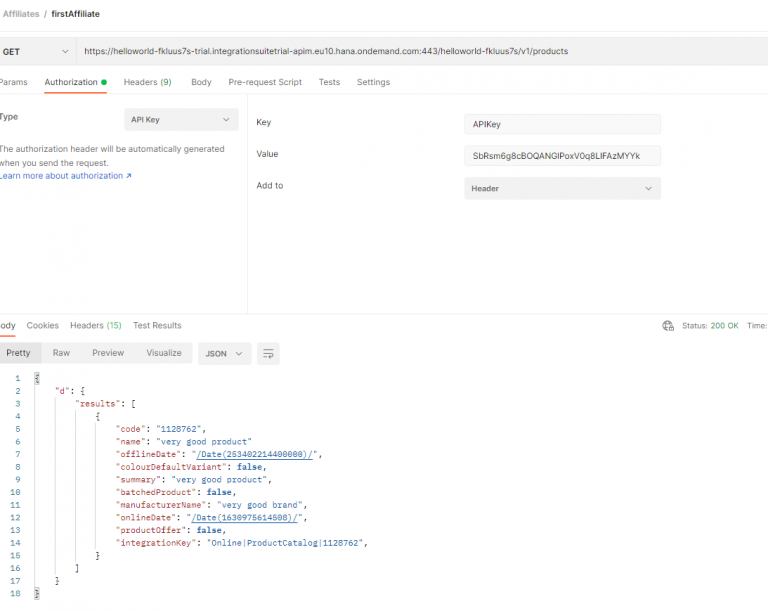
Now let us dive into the syntax. First, export the API from the portal.
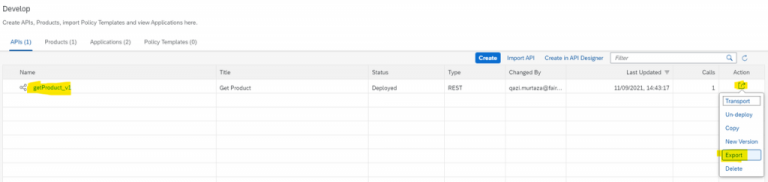
Unzip and open the API in your favourite IDE.
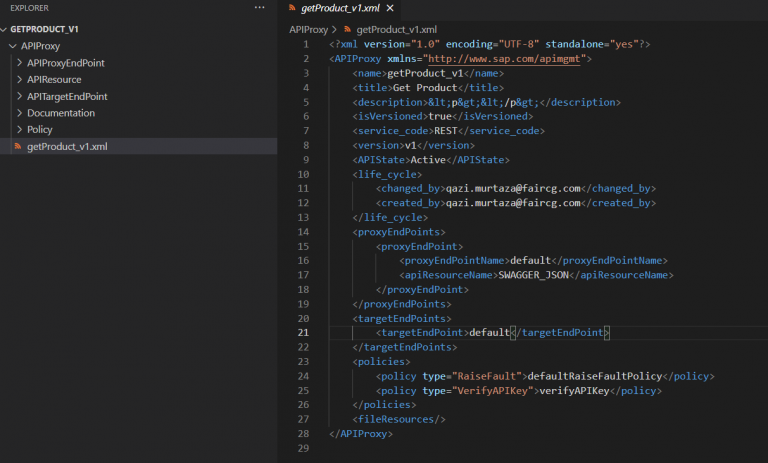
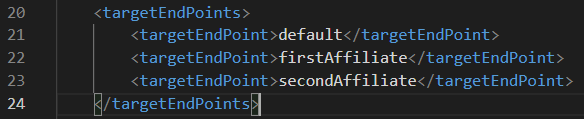
You will find “getProduct_v1.xml” at the root location. You will come across one target endpoint “default” when you review the file. Define two new target endpoints.
Next, go to the “APITargetEndpoint” folder, clone default.xml, and rename it appropriately.
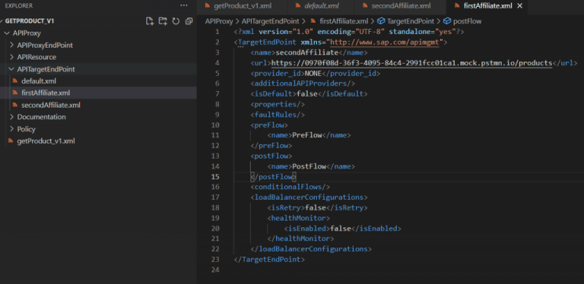
Set the value of `isDefault`, the newly created target endpoint, to false. You can also take some liberties here and define the conditions for the target endpoints.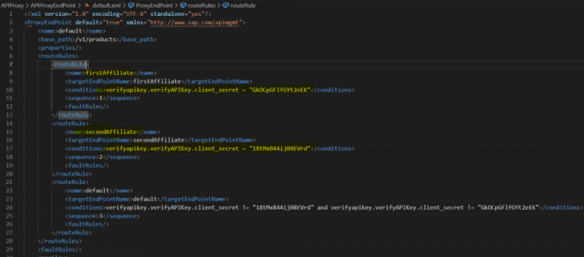
Upload/re-Import, zip the API Proxy and import it. It is important to remember that you are only supposed to zip the APIProxy folder inside.
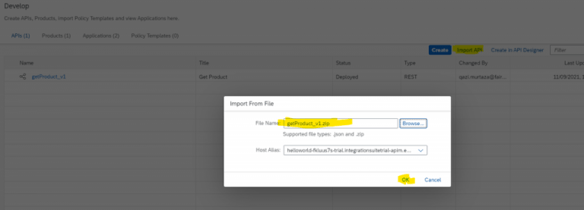
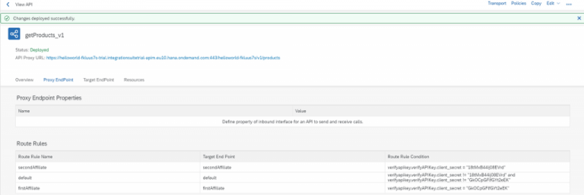
Once successfully imported, edit the API, save and deploy.
Lastly, run a test with the mock server.
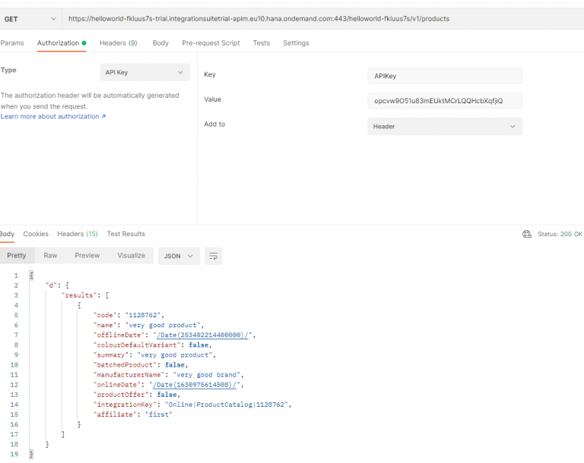
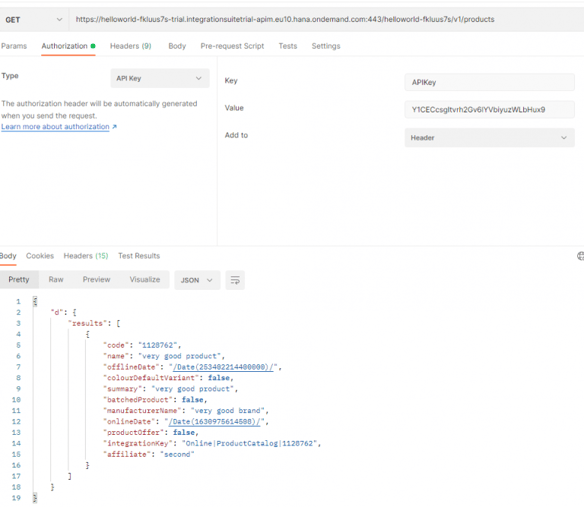
We can see that the secret key/client_secret request is redirected to a different API base path.
A side note: While working on the trial account, we faced some issues on the trial account, such as the API did not update despite repetitive uploading/importing. It kept showing us the older API Configs. It was like it was being cached and there was some checksum. But we remained persistent and uploaded again after changing names slightly. Once we changed multiple values, we were able to upload the correct version of the API successfully. So don’t give up!
Conclusion
Long story short, to effectively manage multiple APIs, all you have to do is export the API Proxy, edit the XML, define multiple target endpoints, route condition re-import and just keep it simple.
Dynamic target endpoints save us from the hassle of keeping track of the N number of APIs. As you can see in this particular use case, we did not use more than one policy or customisation. In an actual use case, many policies are in place.
Imagine having such a complex template be duplicated over and over again.
With the use of route rules and dynamic target endpoints, we have implemented a solid architecture principle that is universal. This option is documented by SAP and inherited from the OEM version of APIGEE. So far, SAP API Management UI lacks full compatibility with this feature. Let’s hope for these options to be included in the portal soon.
If you think the above workaround is a hassle and SAP should add this feature in the portal, you can vote here.